New Company
Here are the steps to Create a New Company. To learn more, you can also watch this RADIX Online tutorial video:
To create a New Company in Radix,
Step 1: Open New Company
After logging in to the Radix Main Menu, click on the F3 New Company option from the sidebar.
Alternatively, you can press the F3 key or go to Company > New Company (Ctrl + N) from the horizontal menu bar.
Step 2: Select Company Group
The Company Group to Open Company form will open, displaying a list of company group names and codes.
Select the desired company group in which you want to create a new company.
If you have only one company group, the list of companies from that group will be displayed directly.
Click OK or press Enter to proceed.
Step 3: Enter GSTIN Details (New Option)
The Create Company form will open with an option to enter the GSTIN and fetch company details directly from the GST portal.
Option 1: Create Company with GSTIN
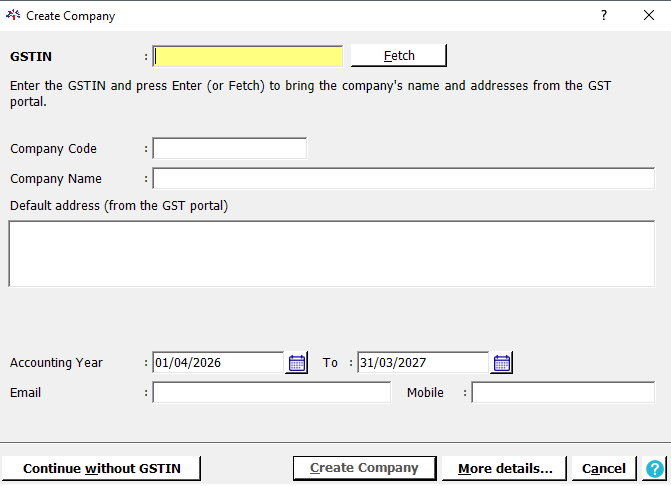
- Enter the company's GSTIN in the provided field.
- Press Enter or click the Fetch button to retrieve company details from the GST portal.
- The company name and registered address details will be fetched automatically.
- If multiple addresses are available, select the address you want to set as the Default Address.
- Enter or verify the Company Code, Accounting Year, Email, Mobile, and other required details.
- Click Create Company to proceed.
- The existing Company Information - New Company to Create Company form will open with the fetched details automatically filled in.
Option 2: Create Company without GSTIN
If you do not want to fetch company details using GSTIN, click Continue without GSTIN.
The existing Company Information - New Company to Create Company form will open, where you can manually enter the company details as before.
Step 4: Enter Company Information
The Company Information - New Company to Create Company form will open.
Here, you will find a horizontal menu bar with different tabs to enter or update company details.
1. General Details
- Code: Enter your company code (e.g., XYZ2627 for financial year 2026–2027).
- Name: Enter your company's full name.
- Accounting Year: Select the financial accounting year.
- Auto Backup: Tick here to enable automatic backup of your company data to Google Drive.
If details were fetched using GSTIN, the available information will already be filled in. You can verify the details and make changes where required.
2. Address Details
Navigate to the Address tab and fill in or verify the following details:
- Address
- City
- Country
- Phone
- Mobile
- PIN (Postal Code)
If an address was selected during GSTIN Fetch, that address will be populated automatically.
3. Setup Options
Navigate to the Setup tab and select your preferred option:
- Setup from Existing Company: Use this option to apply the same settings from an existing company to your new company.
- Build Own with Predefined Settings: Use this option to create a new company with predefined settings.
4. Other Tabs
Explore the remaining tabs and fill in any additional details as required.
Step 5: Save Company
After verifying and entering all the necessary details, click the Save button.
Your new company will be created successfully.
Related Topics:
1. Open Company
Created with the Personal Edition of HelpNDoc: Free help authoring tool