Manage Report Schedules
To manage scheduled reports in Radix, follow the steps below:
- After logging in to the Company Main Menu, go to Settings > Report Scheduler > Manage Report Schedules [MID:0857].
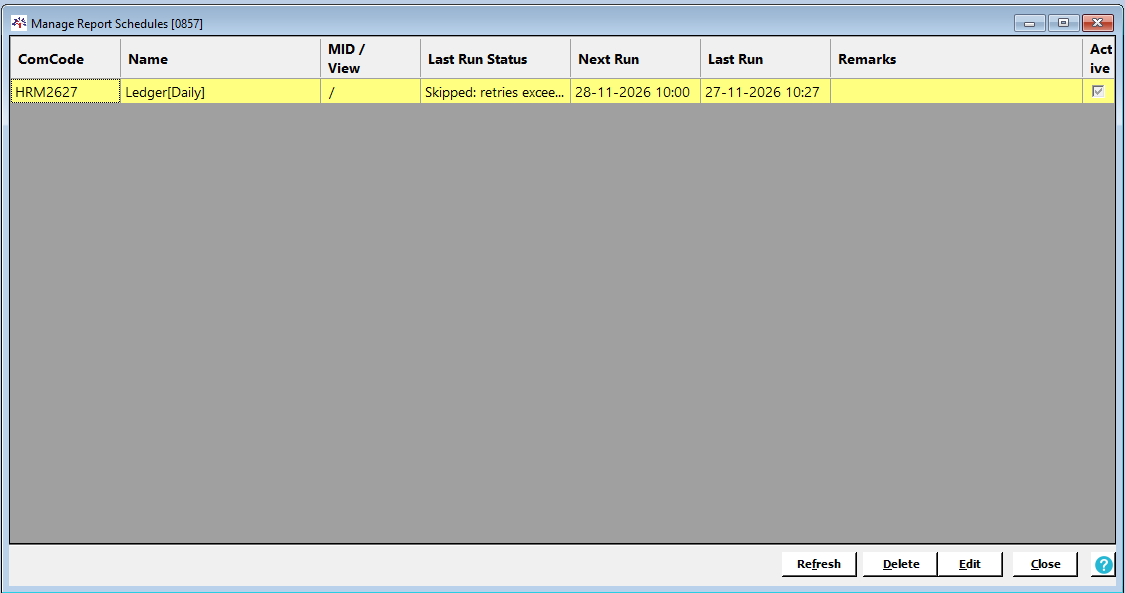
- The Manage Report Schedules window will open, displaying the list of scheduled reports with the following details:
ComCode - Displays the company code for which the report is scheduled.
Name - Displays the name of the scheduled report along with its frequency, such as Daily.
MID / View - Displays the Report MID or View associated with the scheduled report.
Last Run Status - Displays the status of the last scheduled execution, such as Completed, Failed or Skipped.
Next Run - Displays the date and time of the next scheduled execution.
Last Run - Displays the date and time when the report was last executed.
Remarks - Displays any additional remarks related to the scheduled report, if available.
Active - Indicates whether the report schedule is active or inactive.
- To manage a scheduled report, select the required record from the list and use the following options:
Refresh - Refreshes the list of scheduled reports to display the latest information.
Delete - Deletes the selected report schedule.
Edit - Opens the selected report schedule for editing.
Close - Closes the Manage Report Schedules window.
Related Topics:
Created with the Personal Edition of HelpNDoc: Easily create HTML Help documents